Tools / Narrowband
Toolbar tool
Narrowband
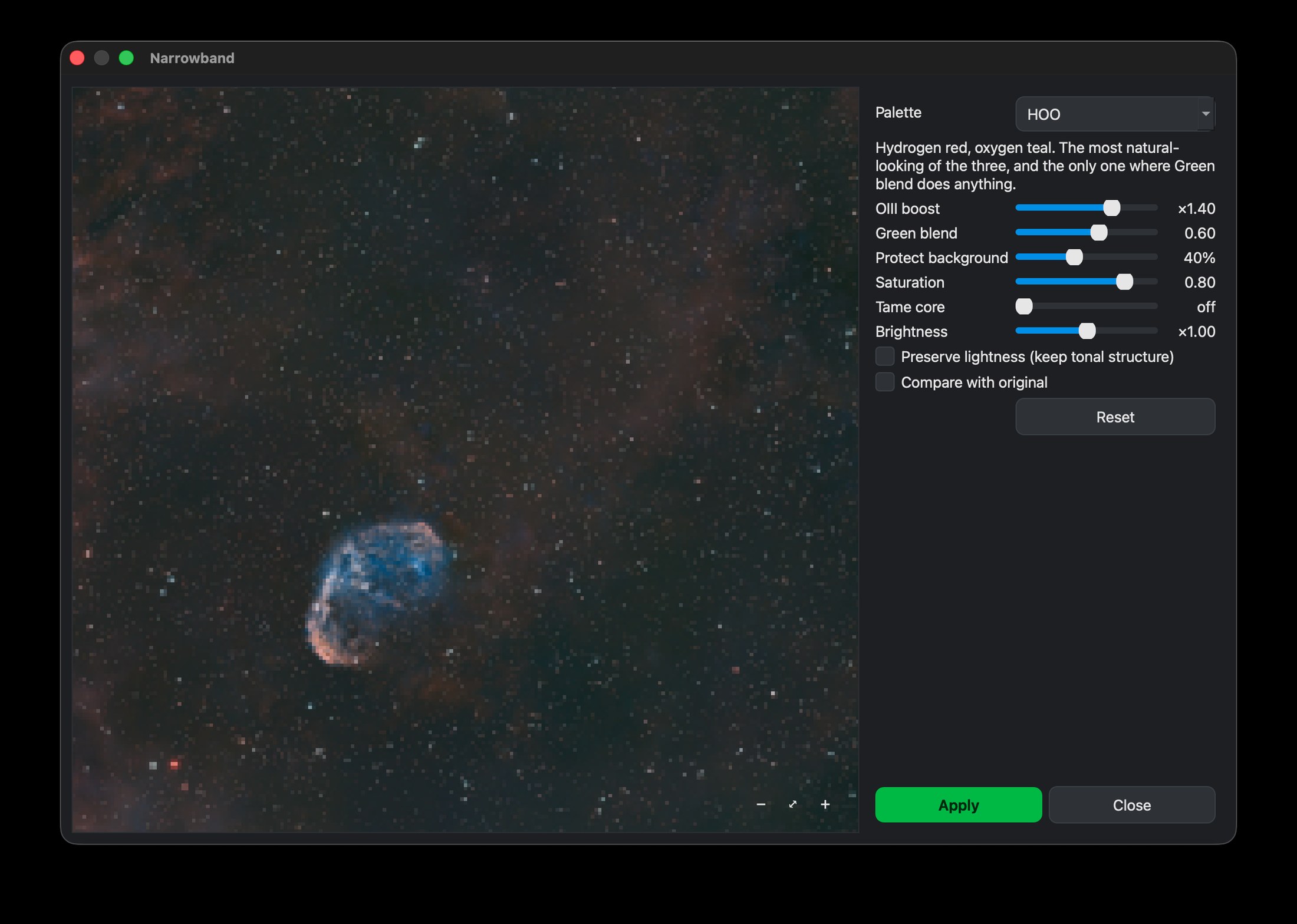
Turn a dual-band Hα/OIII master into a finished colour image, with a choice of palettes and a live preview.
What it does
Narrowband takes a dual-band master, the kind the Seestar’s light-pollution filter records, and turns it into a finished colour image. It sets the stars aside, colours the two gases with the palette you choose, then puts the stars back untouched so they keep their natural look.
How to use it
- Click Narrowband in the toolbar (on a stretched colour image).
- Choose a Palette: SHO-style (gold and blue), which the dialog opens on, HOO or Pseudo-SHO. SHO-style suits large emission nebulae. For a planetary nebula such as M 27, HOO shows the gas more truly.
- Fine-tune with the live sliders: Oxygen strength, Green blend, Protect background, Saturation, Tame core and Brightness, plus an optional Preserve lightness. In SHO-style, Gold and Blue take the place of Saturation: one strength for each colour, and neither changes which parts are gold and which are blue. Tame core is off by default; turn it up when a bright core comes out near-white, and it pulls those highlights down so their colour shows.
- Apply when it looks right.
The Seestar's dual-band filter records Hα and OIII together. A true SHO palette also needs sulfur, which the filter does not pass, so these palettes are built from the two gases you actually have.
LimitsTips
Start with HOO; it's the most natural for emission nebulae.
Download Nocturnefree · macOS, Linux & Windows Try it on sample data
New to Nocturne? The guide walks through every step in order.