Tools / Upscale Crop
Toolbar tool
Upscale Crop
Enlarge a crop 2× — and see, side by side with your original, exactly what enlarging changed.
What it does
Takes a crop of your finished image and makes it twice as large, for a tighter view of a subject that is small in the full frame.
It is not a plain resize. Nocturne separates the stars from everything else, enlarges the two apart, draws the enlarged stars a little tighter so they stay points instead of growing into discs, and puts them back together.
How to use it
- Stretch your image, then click Upscale Crop in the toolbar.
- Drag the crop box around your subject — it opens on Free — or pick a Shape: Original, 1:1, 5:4, 4:3, 3:2 or 16:9, and Portrait to turn it tall, for a picture headed for a particular place. The panel shows the size it will become.
- Click Upscale 2×. Separating the stars takes a moment; Cancel stops it.
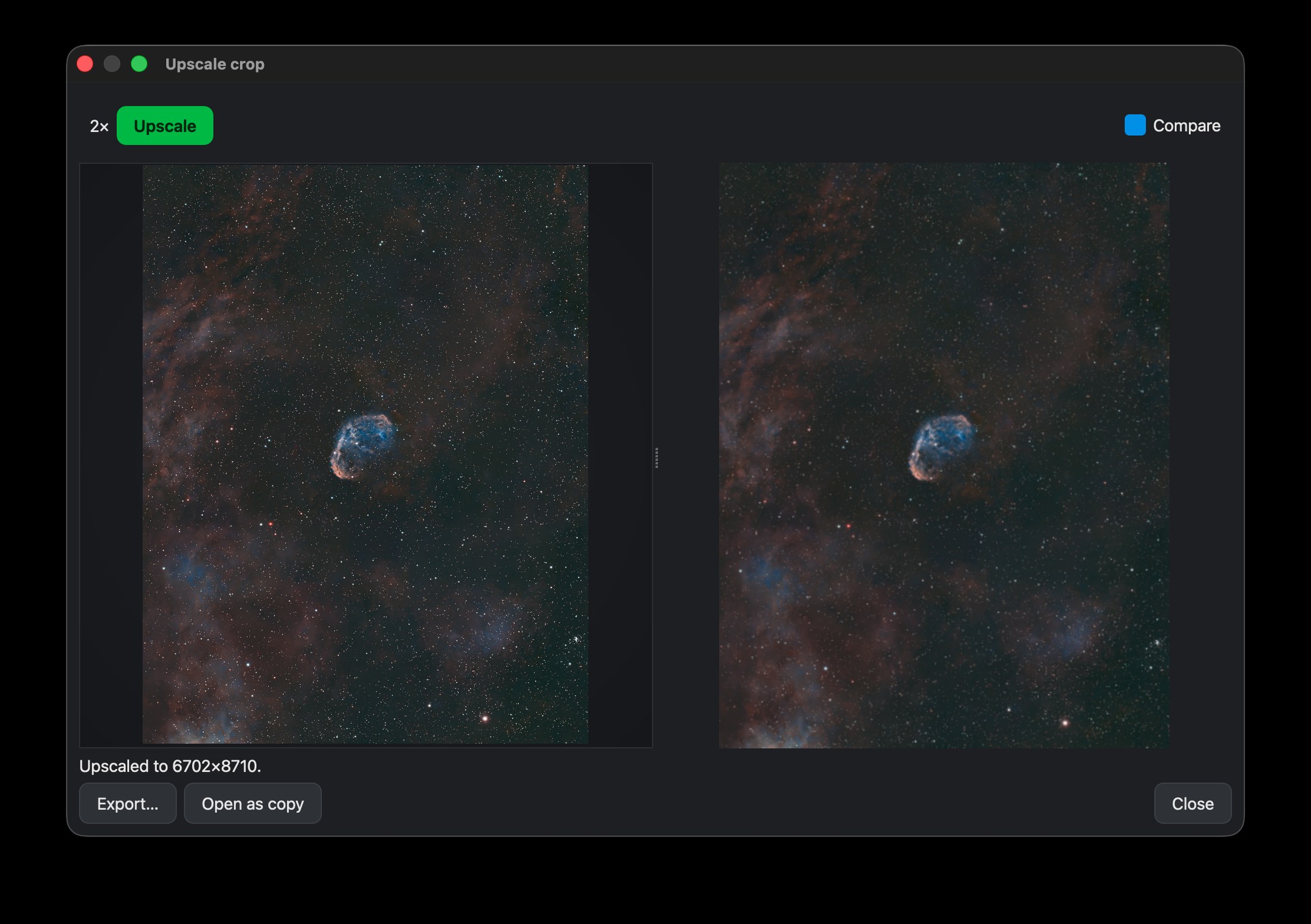
- Judge the result: your crop, Before, on the left — at 100% each of its pixels is a 2×2 block — and Nocturne's enlargement on the right. Zoom or pan either and the other follows. Wipe lays them on top of each other with a divider you drag.
- Adjust Star tightening until the stars look right — the view updates as you move it.
- Export the result, or Open as copy to keep editing it as a new project.
Upscaling cannot invent detail that is not there. It is for framing tight on a subject, not for rescuing a soft image.
What to expectLimits
How large it can be depends on your computer's memory. Enlarging needs working room — about 160 MB for every megapixel the enlarged picture has — so Upscale allows itself up to 40% of the installed memory and leaves the rest for your system and other apps:
- 8 GB of memory: up to about 21 MP
- 16 GB: up to about 42 MP — enough for a whole S30 Pro or S50 Pro frame, which becomes 33 MP
- 32 GB: up to about 85 MP
- More than that: 100 MP at most
The window shows your computer's limit. A crop that would come out larger is refused, with the reason beside the button: choose a smaller crop or a shape.
Noise is enlarged too. Run Noise Reduction first — enlarging makes noise twice as visible, and Nocturne reminds you when it has not been applied.
Tips
A small text file saved beside each export records the crop, the scale and the star tightening, so you can make the same picture again.
Download Nocturnefree · macOS, Linux & Windows Try it on sample data
New to Nocturne? The guide walks through every step in order.